Install the mobile application form Android or iOS and use perc.pass conveniently.
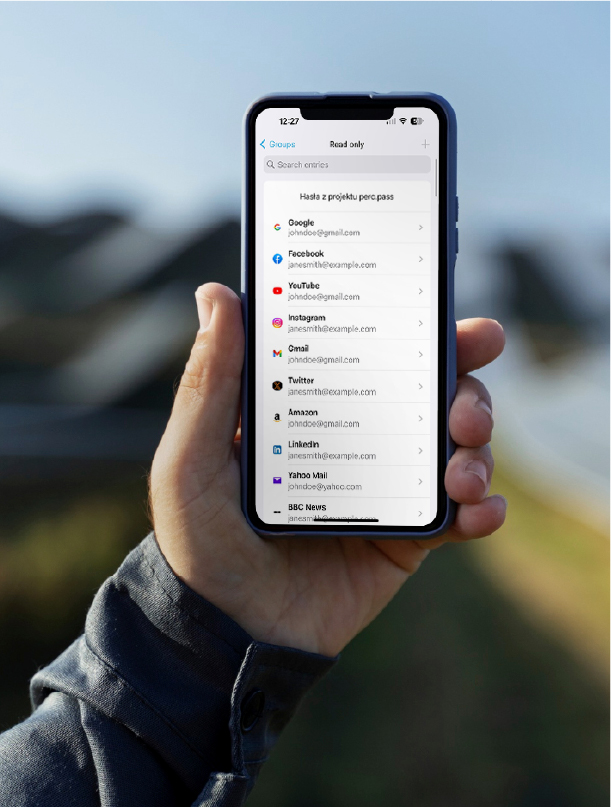
The perc.pass password manager offers mobile applications (iOS and Android) with an autofill feature that significantly facilitates password management. Thanks to this feature, users can automatically fill in login fields in mobile applications and on websites, which saves time and increases convenience. Mobile applications also provide additional security, protecting data from unauthorized access.
Android app installation
1. You will find perc.pass in the Google Play Store. Go to the page or search for perc.pass in the Play Store app, and then install perc.pass on your device by pressing the “Install” button.
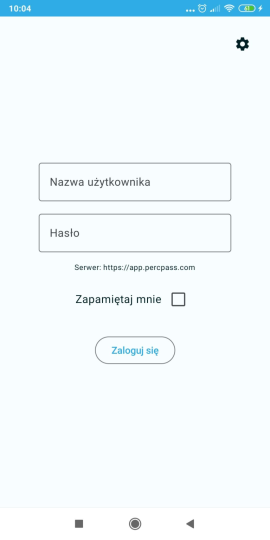
2. Launch the application, and then log in. If you do not hae an account yet, sign up.
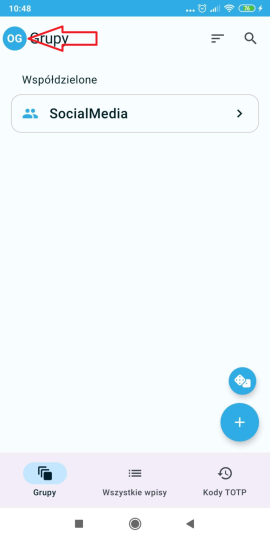
3. Go to “Settings” by pressing the avatar in the upper-left corner of the application.
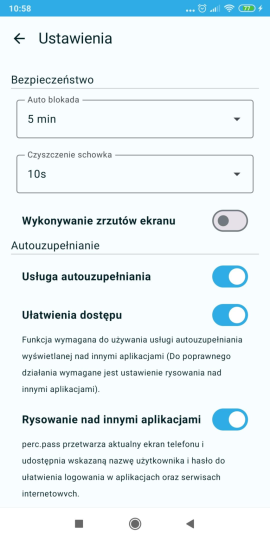
4. To utilize the full potential of the application and ensure its correct operation, activating three features related to autofill is essential. Activate “Autofill service”, “Accessibility”, and “Display over other apps” (Draw over other apps).
iOS app installation
1. You will find perc.pass in the App Store. Go to the page or search for perc.pass in the App Store, and then install perc.pass on your device by pressing the “Get” button.
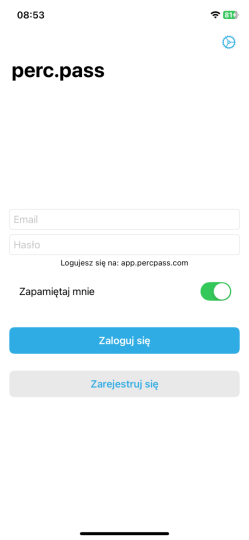
2. Launch the application, and then log in. If you do not have an account yet, sign up.
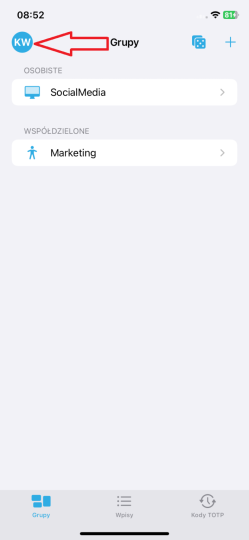
3. Go to “Settings” by pressing the avatar in the upper-left corner of the application.
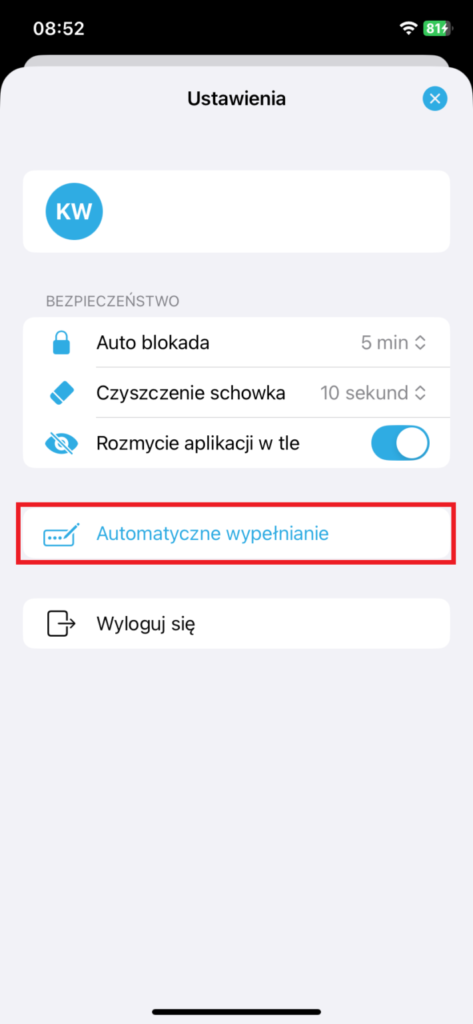
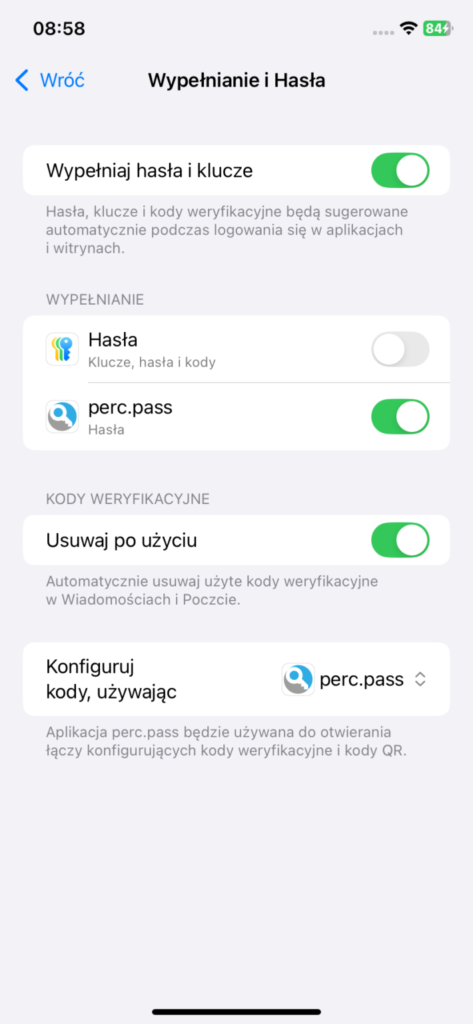
4. To utilize the full potential of the application and ensure its correct operation, activating autofill is essential. Press the “AutoFill” button or go to system Settings -> General -> AutoFill & Passwords. Then activate “AutoFill Passwords & Passkeys”, “Clean Up Automatically”, and select perc.pass for “AutoFill” and “Set Up Codes Using”.