Install the perc.pass extension for you chosen browser and use the convenient autofill for your passwords.
The perc.pass password manager offers an extension with an autofill feature that significantly facilitates password management. Thanks to this feature, users can automatically fill in login fields on websites, which saves time and increases convenience. The extension also provides additional security, protecting data from unauthorized access.
Chrome extension installation
1. You will find perc.pass in the Chrome Web Store. Go to the page and add perc.pass to your browser by pressing the “Add to Chrome” button.
2. Pin the extension to the toolbar so it is always visible. Click the puzzle icon, and then the pin icon next to perc.pass.
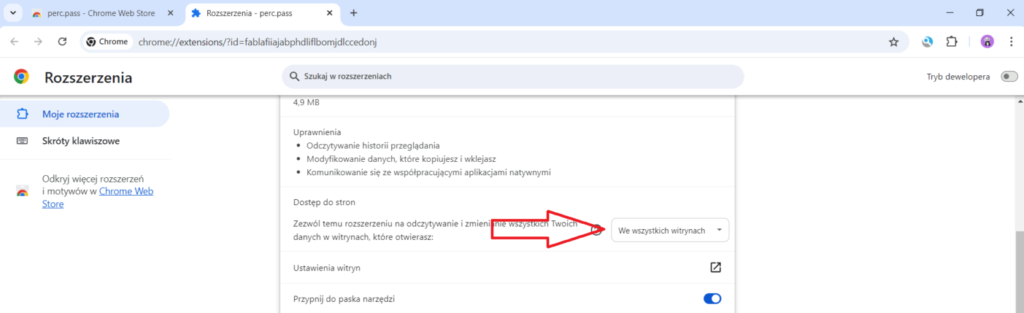
3. Check if perc.pass has access to all sites. You can find site access by going to extension management.
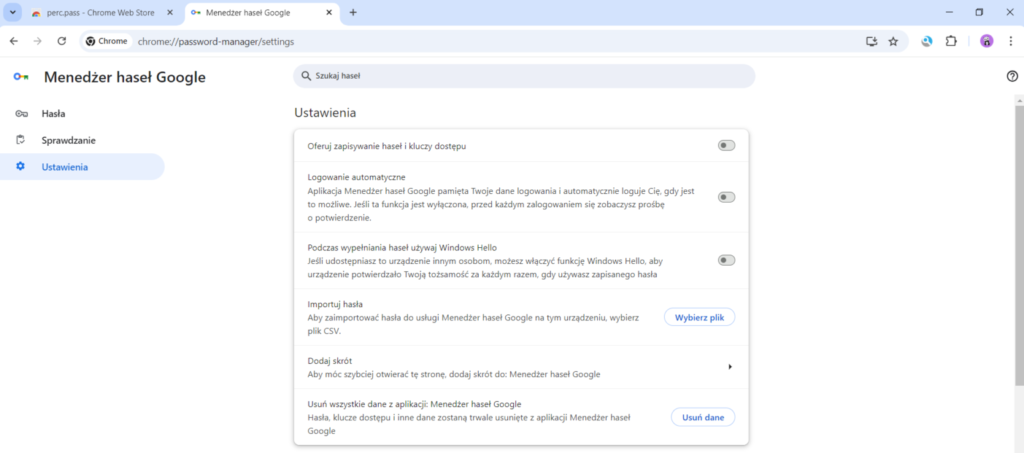
4. We also recommend disabling the password saving feature in Chrome. This will protect you from accidentally saving a password in Chrome. To disable this feature, go to chrome://password-manager/settings, and then turn off all options.
Edge extension installation
1. You will find perc.pass in the Chrome Web Store. Go to the page and add perc.pass to your browser by pressing the “Get” button.
2. Pin the extension to the toolbar so it is always visible. Click the puzzle icon, and then the eye icon next to perc.pass.
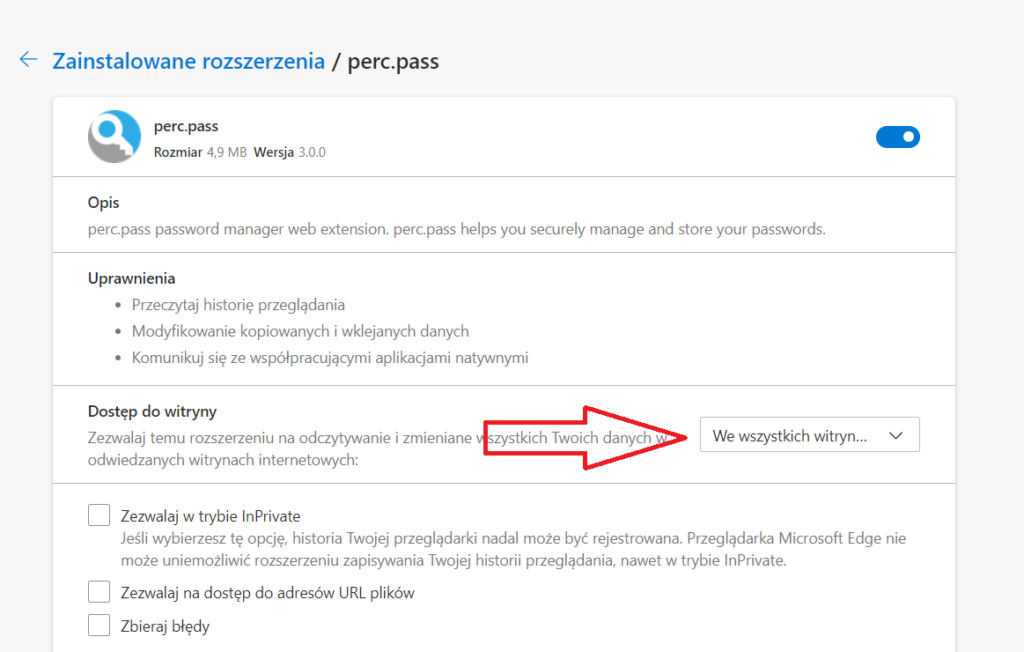
3. Check if perc.pass has access to all sites. You can find site access by going to extension management.
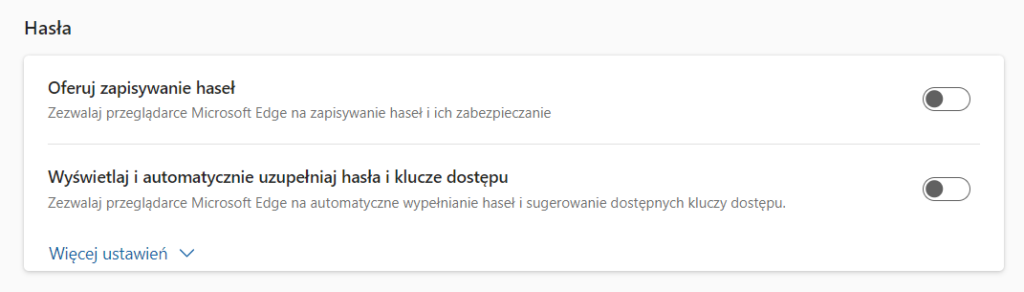
4. We also recommend disabling the password saving feature in Edge. This will protect you from accidentally saving a password in Edge. To disable this feature, go to edge://wallet/settings#settings-passwords-section, and then turn off all options.
Opera extension installation
1. You will find perc.pass in the Chrome Web Store. Go to the page and add perc.pass to your browser by pressing the “Add to Chrome” button.
2. Pin the extension to the toolbar so it is always visible. Click the puzzle icon, and then the pin icon next to perc.pass.
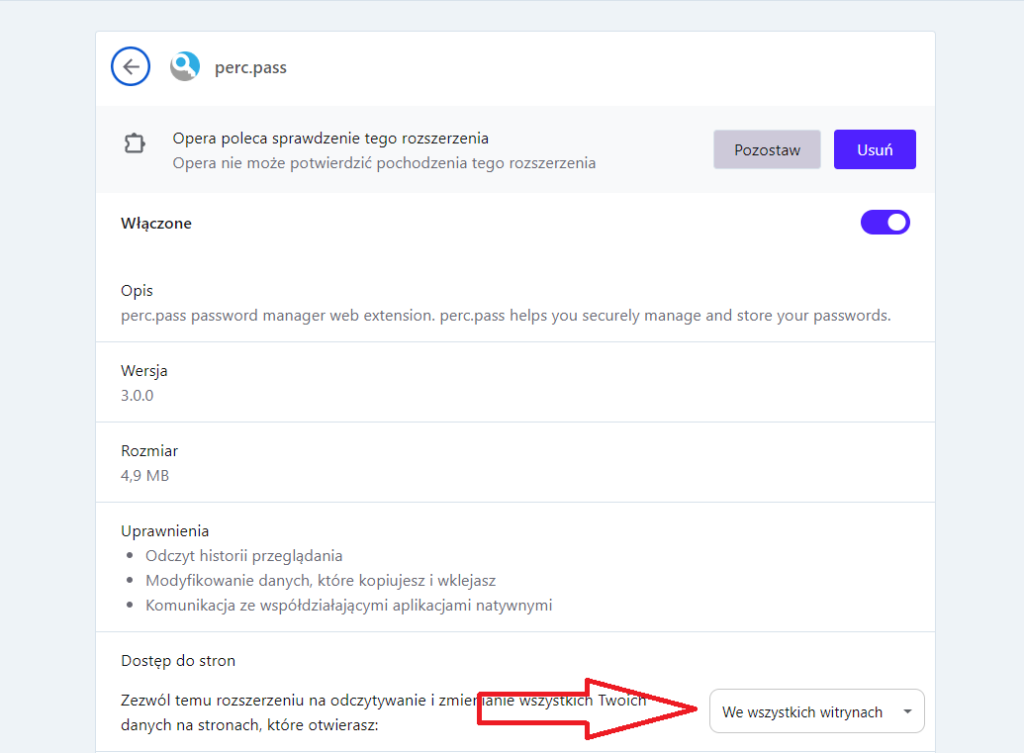
3. Check if perc.pass has access to all sites. You can find site access by going to extension management.
4. We also recommend disabling the password saving feature in Opera. This will protect you from accidentally saving a password in Opera. To disable this feature, go to opera://password-manager/settings, and then turn off all options.
Firefox extension installation
1. You will find perc.pass in Firefox Browser Add-ons. Go to the page and add perc.pass to your browser by pressing the “Add to Firefox” button.
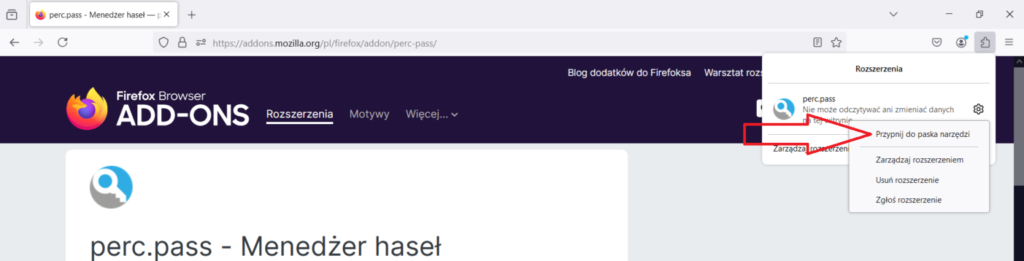
2. Pin the extension to the toolbar so it is always visible. Click the puzzle icon, then the gear icon next to perc.pass, and select “Pin to toolbar”.
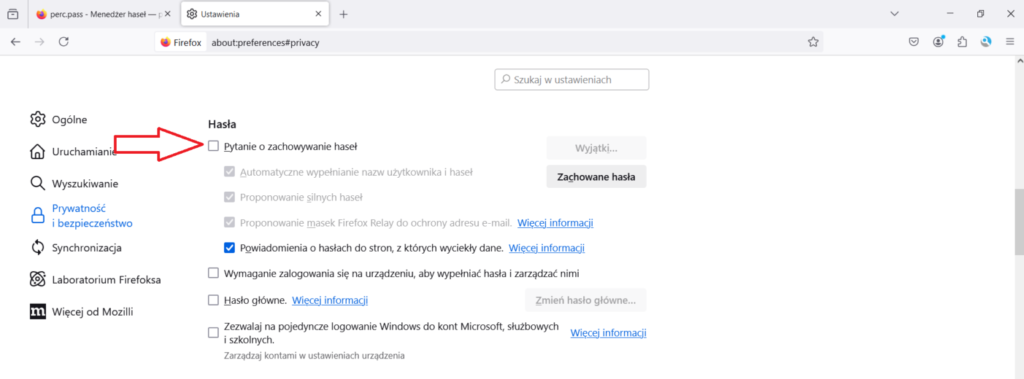
3. We also recommend disabling the password saving feature in Firefox. This will protect you from accidentally saving a password in Firefox. To disable this feature, go to about:preferences#privacy, then find the “Passwords” section and uncheck the “Ask to save logins and passwords for websites” option.
Safari extension installation
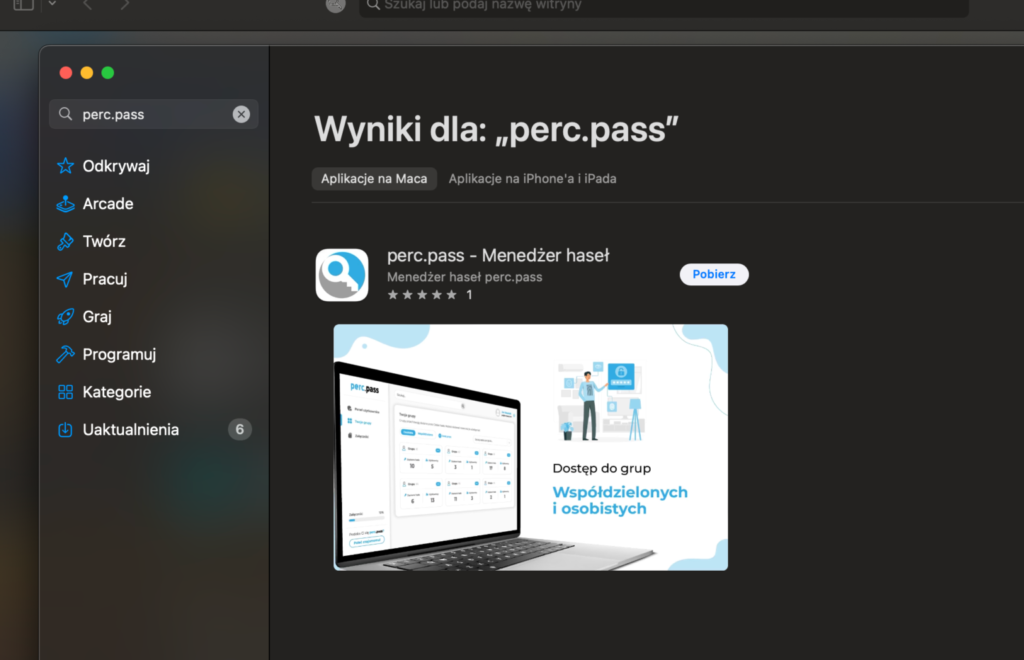
1. You will find perc.pass inthe Mac App Store.Optionally, go to Safari Extensions and add perc.pass to your browser by pressing the “Get” button.
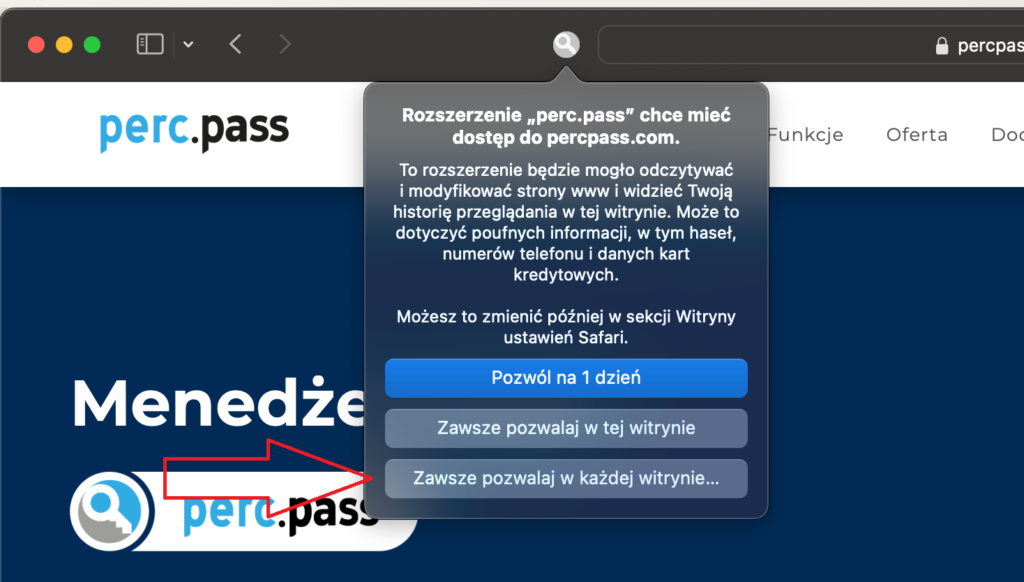
2. The perc.pass extension will ask for access. Press “Always Allow on Every Website” to use perc.pass on all websites.
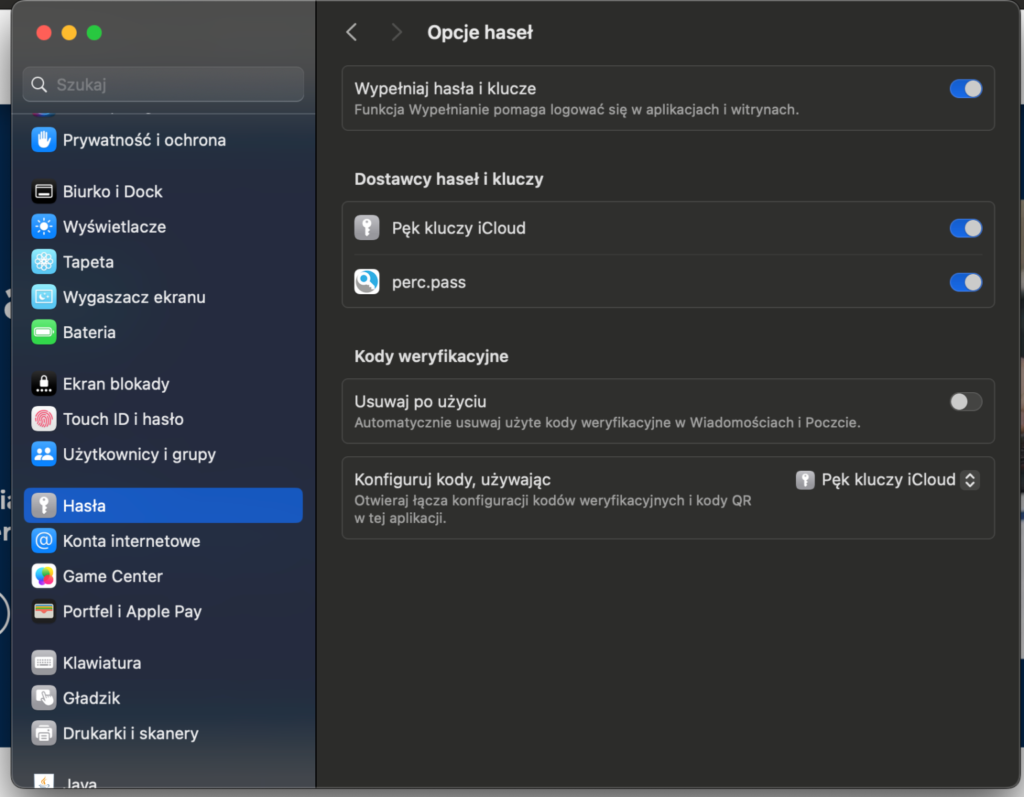
3. In the final step, go to System Settings and the Passwords tab. In the password and passkey providers section, activate perc.pass. This will allow you to use perc.pass in all applications.