

How do we deal with passwords and why is not every method secure?
Let’s face it – password management can be exhausting and problematic. Statistics do not lie – only 15% of internet users use a dedicated password manager. What about the remaining 85%? They rely on their own memory, notebooks, Excel sheets, or managers built into their web browser. Each of these methods has its practitioners. However, most of them have limitations that reveal themselves precisely when it is already too late – for example, after a data breach.
Below, you will find an overview of the most popular alternatives for dealing with passwords. We assess when a given methos is acceptable and when it becomes a risk.
Our memory: why the brain is a poor hard drive
Why it seemingly works
For someone who limits themselves to the absolute minimum – has a bank account, one mailbox, and logs only into their favorite online store – remembering passwords is theoretically possible. The method does not require any additional tool, works offline, and does not expose passwords to digital exposure. This is still (unfortunately) the most popular way we practice.
Why unfortunately? Because we cannot cope with remembering random and long strings of characters, which is exactly what strong passwords should be. As a result, we invent schemes that are easy for us to remember (dog’s name and birth year, city, wedding date), but equally easy to crack. Such passwords are most often responsible for the “security” of our data.
Here we explain – How to create a strong password?
Where the problem lies
Every one of us happens to go to the basement and forget why we actually went down there. In the digital world, we expect absolute memory. The result? Regularly clicking the “RESET PASSWORD” button.
The accounts themselves are usually significantly more numerous than in the example from the introduction, and this is exactly where the problem arises. According to JumpCloud, in 2024, the average user managed nearly 170 online accounts – of which 80–90 were work accounts. Our memory was not designed to store 170 unique, complex strings of characters.
Consequently, as many as 78% of users admit to reusing passwords, and 3 out of 4 passwords are considered insecure due to repetition or an overly simple structure. Reusing passwords does not result from laziness; it is a natural reaction to overload. The consequences are severe because one compromised password can open the way to the remaining accounts where we used the same combination.
Our verdict
With today’s typical user profile (dozens of accounts, different devices, and environments), basing security solely on one’s own memory is a mistake that sooner or later ends in data loss.
A sticky note or a notebook, meaning the analog past
When it makes sense
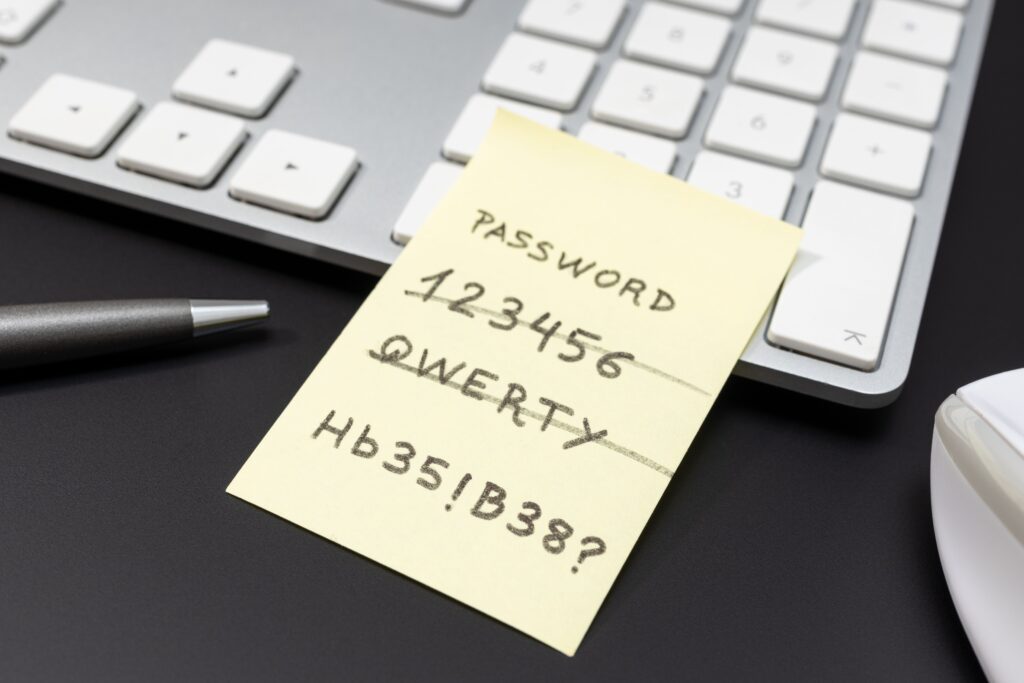
Paper has an undeniable advantage: it is offline. A password written down physically in a notebook will not be stolen by malware (so-called infostealers) nor will it leak in a mass database breach. Writing down a few pieces of critical information, such as the Master Password to a password manager or the PUK code for a phone, and storing them in a home safe, is a justified and even recommended practice.
Where the problem lies
The problem begins when paper becomes the primary identity management system. Keeper Security states that 57% of people admit to writing down work passwords on sticky notes – 67% of whom admit that they lost these notes.
Physical access to a notebook means full access to all credentials written inside it. There is no two-factor authentication (2FA), no possibility to revoke access, and there are no logs indicating who looked at your notes and when. Additionally (unless you take care of it yourself), paper has no backup. Accidentally spilling coffee, losing a calendar on a train, or ordinary desk cleaning can make passwords disappear forever.
And what about convenience? It does not exist – entering a password into a system from a paper notebook leads to: “on which page was the password for…”, “is this an ‘o’ or a ‘0’…”
Our verdict
A sticky note or a paper notebook stored in a secure place is a good practice for keeping a few critical passwords. However, as a primary password management system for dozens of accounts – definitely not.
Excel, a text file, or cloud notes
Apparent convenience
An Excel file with columns for “service,” “login,” and “password” is an office classic. It is popular for several practical reasons: everything is in one place, easy to search, and accessible from the computer, which is the destination target for using credentials. Data from Security.org shows that 45% of Americans manage passwords through unencrypted digital or paper notes. This makes this method one of the most common despite its obvious weaknesses – which ones?
Where the problem lies
An unencrypted password file on the desktop is ready-made loot for a hacker. Infostealers – malicious software designed specifically to steal data from devices – scan user files looking for credentials. A file named “passwords.xlsx” or “logins.txt” is exactly what they are looking for. As Huntress data indicates, infostealers were responsible for 24% of cyber incidents in 2024.
The second problem is the scope of exposure. Sharing an Excel file via email, a cloud drive, or a communicator means exposing all passwords simultaneously, without the possibility of convenient and precise access control. If the file falls into the wrong hands, there is no way to “unsend” this exposure.
Cloud notes (Google Keep, Notion, Apple Notes) add another dimension of risk. Your passwords travel to external servers, usually without robust client-side encryption.
Our verdict
Excel and unencrypted notes are asking for trouble. The method works until the first incident. When it occurs, the consequences encompass all accounts – simultaneously.
Browser manager – a good start, what's next?
Basic level of protection
Password managers built into Google Chrome, Apple Safari, or Mozilla Firefox are a first step toward security for many, but then limitations appear. They offer basic encryption, convenience thanks to form autofilling, and smooth synchronization within a single ecosystem. For someone who exclusively uses devices with a bitten apple logo or moves only within the Google environment, it is a convenient option.
Where the problem lies
The encryption model: In the default configuration, for example in Chrome, the data encryption key is linked to the Google account. Technically, this means Google has the ability to view this data. The Zero-Knowledge model, which guarantees that no one (except you) holds the key to your data, is missing here.
Isolation: The browser is an environment constantly processing external content: scripts, extensions, and websites. A malicious extension or an infected page could potentially gain access to data stored within the same environment.
Lack of useful features: Browser managers do not enable password strength auditing, data breach alerts, or the ability to share passwords with team members – features critical for both individual users and companies.
Cross-platform limitations: Passwords from Chrome do not work natively in Safari and vice versa. Changing ecosystems or using different browsers on different devices can result in a synchronization problem. If you use Windows at work and an iPhone privately, you will quickly feel the lack of cross-platform compatibility.
Our verdict
A built-in browser manager is a good starting point – significantly better than Excel. It is not sufficient for a user who takes the security of their accounts seriously, uses different ecosystems, or manages access in a professional environment.
How individual solutions handle the pillars of cybersecurity
| Criterion | Memory | Sticky note | Excel | Browser | perc.pass |
|---|---|---|---|---|---|
| Data encryption | Yes (with caveats) | AES-256 | |||
| Zero-knowledge model | Optional | Default | |||
| Cross-platform compatibility | Limited | Only in ecosystem | Full | ||
| Password generator | Basic | Full | |||
| Password strength audit & breach alerts | Partial | Yes |
What to choose? Match the solution to your needs
"I have a few accounts and don't plan on more"
Do you possess between five and ten accounts, use one laptop, and one browser? If you do not operate critical financial systems or corporate environments, a built-in browser manager might be enough for you. The condition? Enabling optional client-side encryption and taking care yourself to use difficult, unique passwords.
"I have dozens of accounts, including financial and work ones"
This is where the trouble begins. In this situation, none of the above alternatives provide the necessary security. With dozens of logins, reusing passwords is almost instinctive. A dedicated password manager (offering a character generator, vault auditing, and real-time breach alerts) is no longer a luxury, but a primary tool protecting your identity and finances.
"I manage access in a company or within a team"
None of the discussed half-measures solve problems in a multi-user environment. Excel sheets sent over Slack are a recipe for disaster. An organizational password manager allows for secure asset sharing, strict permission control (e.g., cutting off access for a former employee with a single click), and full visibility into login history. This is a solution that works systemically rather than reactively.
perc.pass: the center of your security
If you feel that your current methods have stopped working for you and it’s time to change habits, perc.pass is the first Polish password manager created specifically to eliminate the vulnerabilities described above.
What do you gain by switching to perc.pass?
Zero-Knowledge Architecture: Your passwords are encrypted locally (exclusively on your device) using the AES-256 standard. As a service provider, we never have access to your Master Password or your data.
Management without a headache: With a single click, perc.pass will generate a complex password for a new service, remember it, and automatically fill in the form at the next login – regardless of whether you use Windows, macOS, Android, or iOS.
Secure sharing within a team: Do you want to securely share a password to a corporate CRM with your team? With perc.pass, you can share access while retaining full control and the ability to revoke permissions.
Active monitoring: The system will tell you which of your passwords are too weak or, worse yet, have appeared in public data leaks.
Risk can (and must) be managed
All alternatives to a dedicated password manager share a common denominator: they work well only on a small scale, and they fail exactly when you need them most – when there are too many accounts, when hackers compromise a portal, or when you need to efficiently hand over logins in a company.
The decision to choose a password management tool is not a technical decision. It is a decision about how much risk you accept and whether you want to manage it consciously or leave it to chance.
Take the first step toward security. Test perc.pass and see how convenient it is – as part of a free, 30-day TRIAL.
Importing passwords from a browser or a CSV file takes just a few clicks!